
How to Upscale an Animated GIF
Choose an enhancement mode and scale, understand conversion limits, and review both GIF and MP4 downloads.
Artplayer AI5 min read
On this page
Before you begin
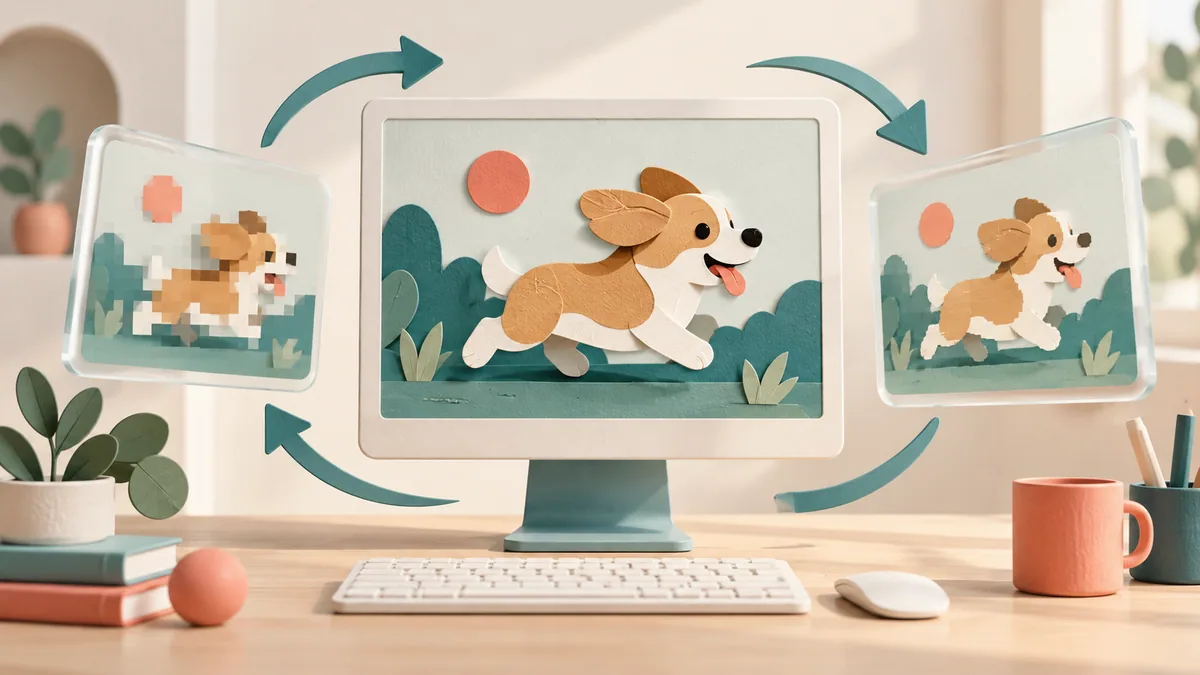
An animated GIF carries timing and frame behavior that a still image does not. Artplayer AI prepares the animation for processing and exports an enlarged GIF plus a silent MP4. Check the source and the finished loop before sharing.
Check the animation before upload
Inputs are limited to 20 MB, 20 seconds, and 600 frames. A short representative loop is easier to inspect than a long animation with many large frames.
Selecting a file reads its dimensions, frame count, and timing locally for an estimate. The image pixels upload only after you start; the server then validates and converts the original.
Choose mode, scale, and fill
Select Basic HD or Advanced enhancement and a maximum 2× or 4× scale. The app may reduce the scale to stay within output budgets; check the actual dimensions shown.
GIF transparency is not preserved as an alpha channel. Choose white or black fill for transparent regions. The companion MP4 is silent.
Know what conversion changes
The animation is converted to a 30 fps intermediate video. Very short frame delays may be combined, so frame-by-frame lossless reproduction is not promised. The final GIF keeps the full picture without stretching or cropping.
The GIF is limited to a 1280-pixel longest edge, 1,048,576 output pixels, and 100 MB. The app may reduce dimensions proportionally or reject an unsupported extreme aspect ratio.
Review both deliverables
Watch the result from beginning to end. Check quick transitions, transparent edges, repeated motion, and whether the chosen background color suits the animation.
Download the GIF for sharing and MP4 when a video format is more useful. Keep the original to compare timing and detail.
- Confirm duration, frame count, dimensions, and transparency before starting.
- Watch at normal speed for timing changes, flicker, or edge artifacts.
- Open both downloads in the destination app.
Ready to try the tool?
Choose your file, review the available settings and current credit quote, then start when you are ready.
Upscale a GIF