How to upscale your first video
Introduction
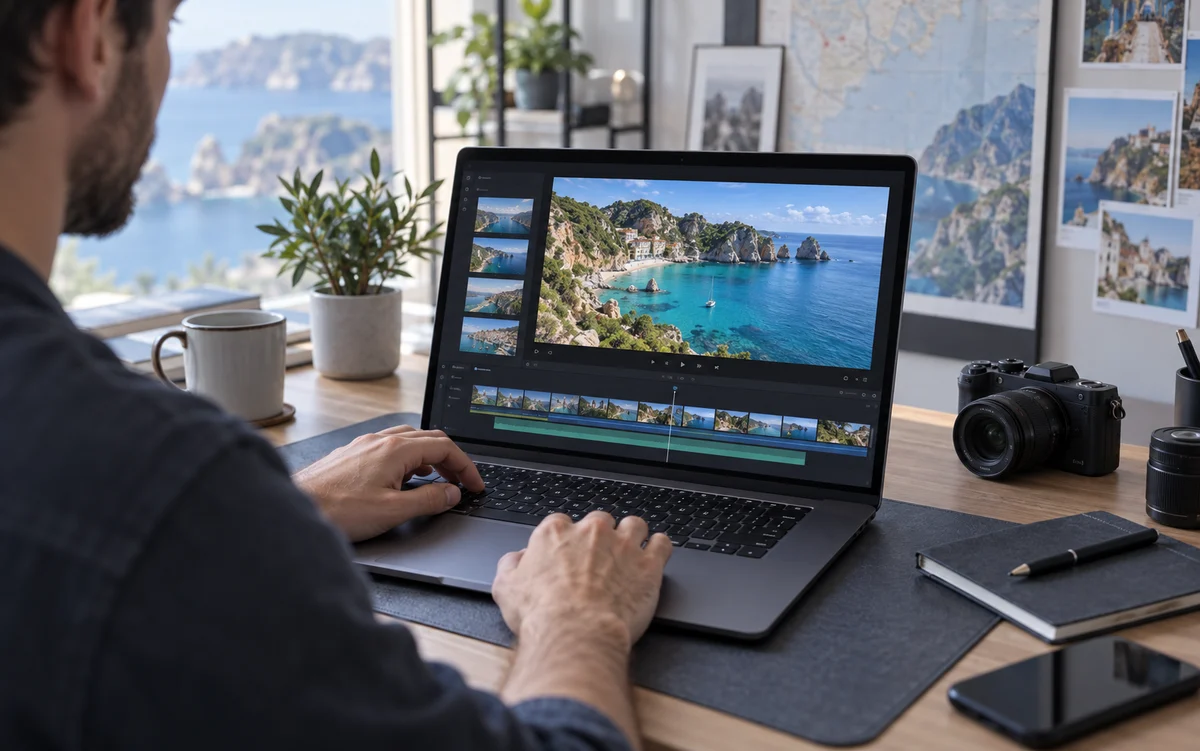
A practical walkthrough from choosing a source clip to downloading your result.
1. Choose and validate your source
Sign in with your invited account and choose or drop an MP4 or MOV. Upload it for validation of the actual format, dimensions, duration, and frame rate. The preview supports H.264, 8-bit SDR, 16:9 or 9:16, up to 60 seconds, 200 MB, and 30 fps.
2. Choose a resolution and review the quote
Select 1080p or 4K. The output must be larger than the source. Review the exact pixel dimensions, credit quote, and your balance before starting. Upload validation alone does not submit AI processing.
3. Compare and save your result
When processing finishes, switch between source and result or compare playback. Download the MP4 or open the job later from My videos. Save the result promptly: this service is not permanent video storage.
Pick up where you left off
Once processing starts, refresh the page or visit My videos. Progress is stored on the server, so you do not have to keep watching the same tab.
Keep a copy of your result
Preview and download the result as an MP4. Save a copy before it expires: results are available for 7 days and source uploads for 24 hours.