AI Video Upscaler
Upscale your videos to HD or 4K. Simple settings, clear pricing, no watermark.

Drag and drop video files here to start processing
Maximum file size: 1GB free, up to 10GB with a paid plan
Supported formats: mp4, webm, mov, mkv, avi, wmv and 30+ other formats
The limits above are planned. Current preview: MP4 / MOV (H.264), up to 200 MB, 60 seconds and 30 fps.
Enhancement mode
Standard enhancementEnhance detail while keeping a natural look.
This mode requires a larger output. Same-size enhancement is not available yet.
Private uploads. Only your account can access your files. Your video is uploaded for cloud processing.
Trusted by teams, creators, and businesses worldwide
Use VideoUpscaler to enhance video clarity, improve the viewing experience, and make everyday video processing easier.








A simpler way to upscale video
One focused workspace, from upload to download.
More pixels, finer detail
Increase resolution and apply AI enhancement. Results vary with the source video.
1080p and 4K output
Choose the output you need and see the exact size before processing.
Cloud processing
Keep using your computer while your video is processed in the background.
Easy to play and share
Download an MP4 with H.264 video and a preserved AAC audio track.
Know the cost first
Accept a fixed credit quote. You won't be charged extra when the task finishes.
Private by default
Authenticated access, limited retention, and a delete control for your files.
How to upscale a video
Upload, choose a resolution, and download your enhanced video
Choose a video you have permission to process. Drop an MP4 or MOV into the upload area, select a local file, or import a public direct video link. Sign in and upload it for a check of its format, dimensions, duration, and frame rate.
Make more of the videos you love
Memories, creative projects, and new ways to share your footage
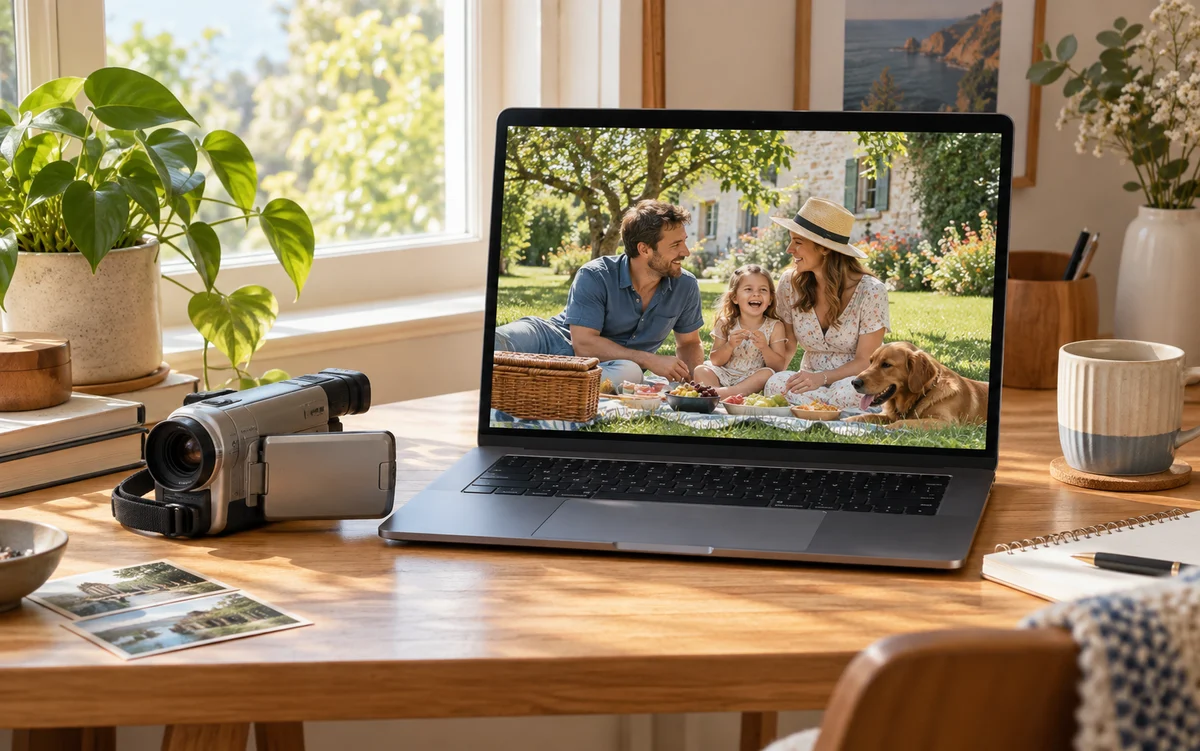
Give your memories a bigger screen
Bring lower-resolution clips from your phone or camera to an HD canvas. Start with a short clip, review the result, and choose an output size that suits the moments you want to keep.
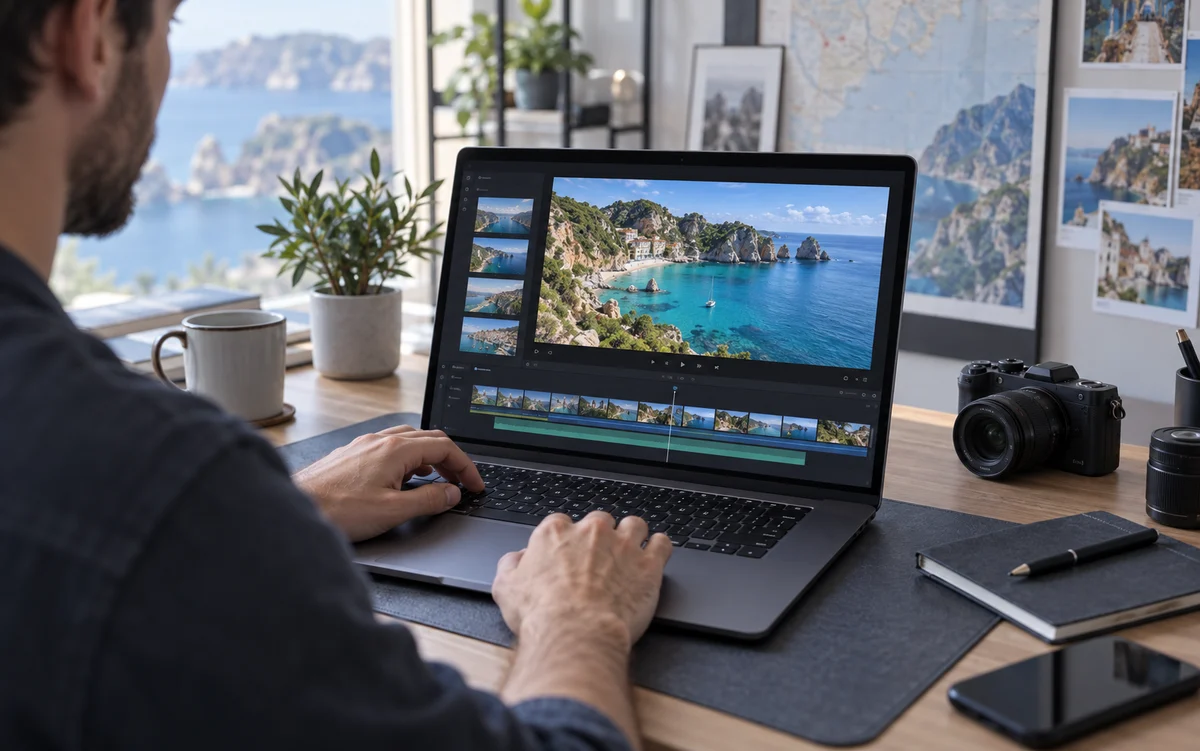
Make more of the footage you already have
Prepare travel footage, social clips, and personal projects at a higher resolution. Keep the original aspect ratio and audio, then download an MP4 for the editing workflow you already know.
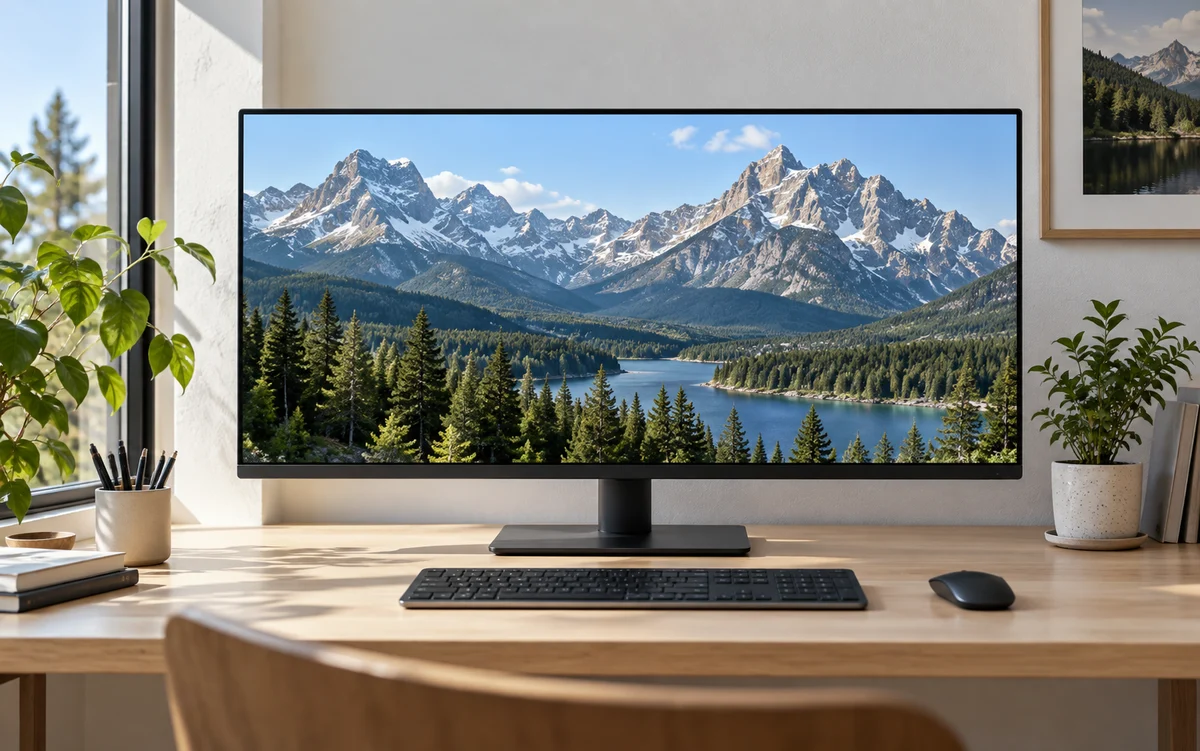
Rediscover your videos in 1080p or 4K
Choose 1080p or 4K and see the exact dimensions and credit quote before processing. Return to your library to preview, compare, and download the result. Improvement depends on the source footage.
What our users say
From treasured memories to everyday social content, explore clearer video. These preview testimonials are examples; real customer feedback will follow.
We wanted to give older footage a place in our new projects. VideoUpscaler makes the process easy to follow: upload the original, confirm the output, and return to the library to review the result with the team.

Alex Rivera
CTO, InnovateTech
Our everyday content arrives in many different resolutions. Being able to submit a clip in the browser, choose an output size, and download it for our editors makes preparing footage a much more straightforward part of the day.

Samantha Lee
Marketing Director, NextGen Solutions
As a small team, we want to spend our time creating rather than setting up software. We can try a short clip, review the credit quote before processing, and decide which footage to work on next.

Raj Patel
Founder & CEO, StartupGrid
Our product demos need to work on different screens. I like checking the actual output dimensions before processing. Once a clip is ready, the preview and download give us a clear starting point for discussing the footage together.

Emily Chen
Product Manager, DigitalWave
When organizing training materials, we often find older videos worth keeping. Processing a short sample and comparing the details before continuing fits the way we work, while we keep the original footage safely alongside the result.

Michael Brown
Data Scientist, FinTech Innovations
We do not need to stay on the processing screen. After submitting a clip, we can get on with other work and return to My videos to check its progress and download the result when it is ready.

Linda Wu
VP of Operations, SupplyChain Solutions
Our project archive includes landscape footage and portrait clips shot on phones. Keeping the original proportions matters to us. Choosing an output for each clip and reviewing it in our usual player feels like a natural workflow.

Carlos Gomez
Head of R&D, EcoInnovate
After an event, we revisit our footage to prepare future content. Sending selected clips for cloud processing and downloading them into our editing tools gives us a simple, organized way to bring that material into new creative projects.

Aisha Khan
CMO, FashionForward
Four scenes. A closer look.
Drag the divider to compare both sides. Press play to explore the details in motion.
Nature & landscapes
Demo clipWaves, rocks, and details in the distance
Portraits & people
Demo clipFacial features, hair, and natural expressions
City at night
Demo clipLights, architecture, and streets in motion
Food & everyday moments
Demo clipTextures, colors, and close-up movement
Preview demo: each pair uses lower- and higher-quality versions of the same stock clip to test the comparison interface. These are not actual AI processing results.
Ready to give your video a bigger picture?
Give your memories, everyday moments, and creative projects a clearer viewing experience. Upload a short clip, choose 1080p or 4K, and review the exact quote before starting. No installation: compare the result and save your enhanced video when it is ready.
Upscale your videoFrequently asked questions
Answers to common questions about upscaling your videos
Will every video look sharper?
AI upscaling adds pixels and may improve detail, but quality depends on the source. It cannot guarantee recovery of original detail or remove every artifact.
Which videos are supported?
This preview accepts 16:9 or 9:16 MP4 or MOV with H.264 video, optional AAC audio, up to 60 seconds, 200 MB and 30 fps. Input is limited to a 1920-pixel long edge and 1080-pixel short edge. HDR and multiple video tracks are not supported.
Can I enhance a video without making it larger?
Not in the current mode. The output must be larger than the input. We won't automatically select a more expensive resolution for you.
What happens if processing fails?
If we cannot deliver a verified result, your reserved preview credits are returned. An uncertain submission is checked first to prevent duplicate processing. Tasks have a six-hour delivery deadline.
How long are files kept?
Originals are available for 24 hours after upload completes, and results for 7 days after completion. Deletion disables access first, followed by background cleanup. The processing provider has separate retention; immediate deletion of its copies is not guaranteed.
Can I pay or sign in with Google?
This is an invite-only preview. Google sign-in and payments are not open yet. Use the supplied test account and internal credits.
Can I upscale directly to 4K?
Select 4K to see the exact output dimensions and a new quote after validation. Processing starts only when you confirm. The output must be larger than the source.
Will processing continue if I close the page?
Once submitted successfully, processing continues in the cloud. Sign back in and visit My videos to check progress and download the result.
Can I buy credits during the preview?
Not yet. The preview uses invited accounts and test credits. The pricing page shows planned packages; checkout is not available.