
How to Restore Old Photos and Keep Their Character
Prepare a scanned photo, choose repair or colorization, and compare the restored PNG with your original.
Artplayer AIอ่าน 4 นาที
เนื้อหาในหน้านี้
ก่อนเริ่มใช้งาน
A faded family print can still hold expressions, clothing, and places worth keeping. AI restoration can make a new viewing copy by repairing visible damage, but reconstructed details are interpretations. Keep the original scan and use it as your reference throughout the process.
Start with a clear scan
Scan the print evenly, or photograph it straight on in soft light without glare. Keep the whole image in focus and avoid shadows from your phone. Save an untouched master before cropping borders or resizing a working copy.
Upload a static JPG, PNG, or WebP up to 20 MB. The long edge must be at most 2560 pixels, the short edge at most 1440 pixels, and the aspect ratio between 1:3 and 3:1. Resize larger scans before uploading; check both edges, not just the file size.
Choose how much to repair
Choose Repair only to keep a black-and-white photo monochrome. Repair and colorize also attempts to add natural-looking color to a black-and-white source; it does not recolor an already color photograph. Added colors are an interpretation, so keep a monochrome copy when the original appearance matters.
Full repair addresses visible scratches, dust, small tears, fading, and mild blur where the source provides enough information. Conservative repair focuses on clear damage and limits changes to ambiguous details, texture, and contrast. Both prioritize natural faces, but neither guarantees exact recovery.
Understand the output before starting
Restoration uses a fixed 1440p / 2K output. The image fits within 2560 × 1440 pixels, with the boundary reversed for portraits, while preserving its proportions. A square photo becomes 1440 × 1440. There is no output-size selector for this tool.
Review your settings and the current credit quote, then start the task. Wait for upload and submission to finish before leaving the page; after successful submission, you can follow progress in My files. The deliverable is a new opaque PNG, so input transparency is not preserved.
Compare the memory, not just the sharpness
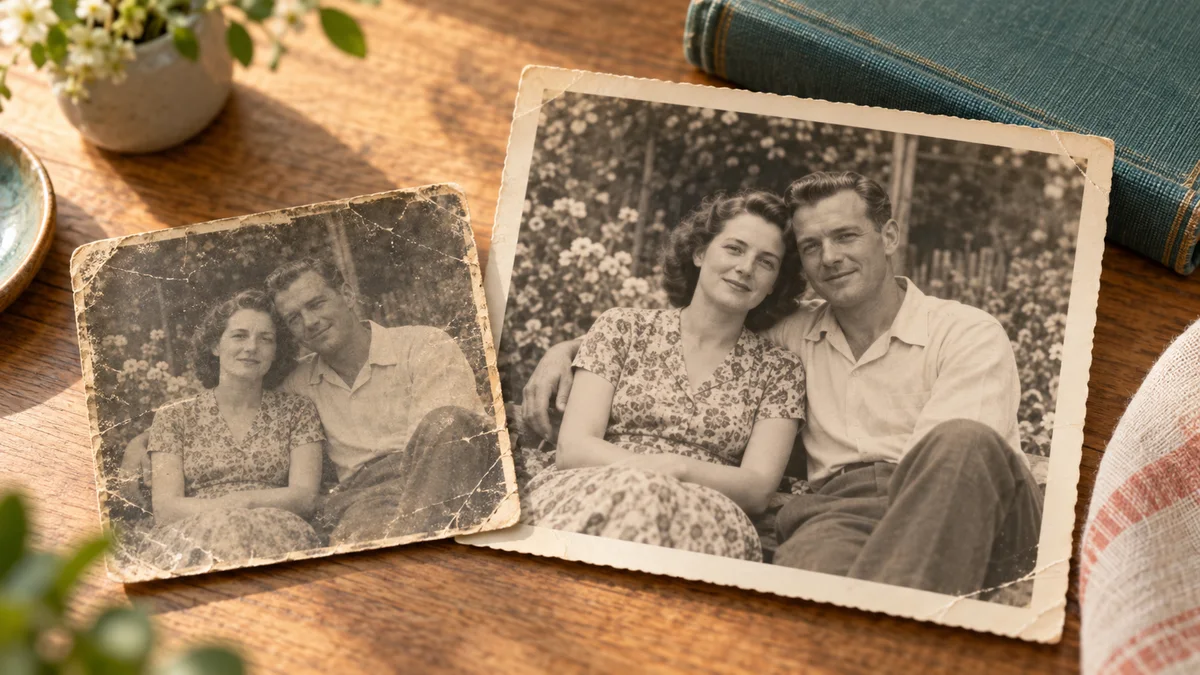
View the source and result at the same scale. A smoother face is not necessarily a more faithful face: check expressions, eyes, hairlines, clothing, and the background. Handwriting, signs, and damaged areas may have been reinterpreted rather than recovered.
Download the restored copy and retain the untouched scan separately. Check the PNG at the intended album or print size. For family or historical records, distinguish the restored version and any added color from the original photograph.
- Check faces and expressions for changes that alter the person’s appearance.
- Inspect repaired tears, lettering, and fine texture for invented details.
- Keep the original scan alongside the restored PNG and any colorized copy.
พร้อมลองใช้เครื่องมือแล้วหรือยัง?
เลือกไฟล์ ตรวจสอบการตั้งค่าที่มีและยอดเครดิตที่ประเมิน แล้วเริ่มเมื่อคุณพร้อม
Restore an old photo